Fix Windows XP Numlock Off at login.
One annoyance that pops up time after time is the toggling of the NumLock key when a user signs in - as in, it's off, and user's don't typically remember to toggle it on before entering their password, thus failing to enter the password and becoming very frustrated! An intreped programmer named Doug Knox has written a program that can help fix this, called, amazingly enough, XP_Numlock.exe.
Free Your Hard Drive of Wasteful XP Hotfix Folders
OK, so, you're running out of hard drive space, or you're really geeky and decided to get rid of any wasteful hard drive usage so that you can get the perfect Defrag with JKDefrag ( now a personal favorite). XP_Remove_Hotfix_Backup.exe is the ideal solution, removing ONLY hotfixes, so it's reasonably safe.
Thursday, January 17, 2008


Wednesday, January 09, 2008
Windows Server Tape Drive Replacement Headaches
So your tape drive has failed, it gets replaced with a similar model, but backups still fail? I've run into this several times, and finally found the info I need to set it right!
Assuming it's a similar model, everything should be OK, right? Well, the RSM (Removable Storage Media) does not agree. It still sees the old tape drive as being there; this would have been avoided if the installing tech (sometimes me, more often a Dell rep) would have shut down the server, removed the failed tape drive, then instead of immediately installing the new one instead fires the server back up and lets it realize for itself that there is no drive. THEN you turn it back off, install the replacement drive, turn it back on, and presto! It works!
So you didn't do this, and Ntbackup doesn't recognize the new tape drive (even if it says the right thing, that right thing is likely the OLD tape drive!), don't worry! Let's begin:
Assuming it's a similar model, everything should be OK, right? Well, the RSM (Removable Storage Media) does not agree. It still sees the old tape drive as being there; this would have been avoided if the installing tech (sometimes me, more often a Dell rep) would have shut down the server, removed the failed tape drive, then instead of immediately installing the new one instead fires the server back up and lets it realize for itself that there is no drive. THEN you turn it back off, install the replacement drive, turn it back on, and presto! It works!
So you didn't do this, and Ntbackup doesn't recognize the new tape drive (even if it says the right thing, that right thing is likely the OLD tape drive!), don't worry! Let's begin:
- Go to your server's command prompt and enter:
RSM VIEW /TLIBRARY /GUIDDISPLAY
- Note that the tape drive listed likely doesn't match the one you'll see in your Hardware Manager - go on and look for yourself, because if this isn't the case, then the rest of this likely won't help!
- Rebuild your RSM database:
A. Stop the RSM Service.
B. Backup the RSM databases located at %SystemRoot%\System32\NtmsData and
delete the contents of ntmsdata folder.
C. Restart the RSM Service and reboot the server. This will recreate new,
empty RSM Databases.
D. Put a new tape in, or a tape that may be deleted.
E. Go to the "properties" of the disk inside the physical locations. Uncheck
'Enable Drive'
Hit apply & then check the 'Enable Drive' again
(This was done to reset the Flag since we had renamed the database for RSM) - Go to your server's command prompt and enter:
RSM VIEW /TLIBRARY /GUIDDISPLAY
This should prove that your newly installed tape drive is indeed recognized by the RSM. If it isn't, then you likely have other issues like improper drivers.
Sunday, January 06, 2008
Fun 'n Games

Cursor*10 - this one had me puzzled. But duh, it's a puzzle game? When I read the instructions, I thought they were an awful translation of the author's intent. Instead, it's literally true. This one really makes you think, especially as it plays tricks with time in a way that can be a bit disorienting. In this game you get 10 cursors, each with a 5 second life. You get points by clicking pyramids. Boxes hide stairs, and stairs advance you to the next level. Low, flat, boxes are buttons that make a set of stairs appear. You get 10 cursors that exist simultaneously in the game world, but you manipulate them sequentially, and the previous cursors replay what you had just done.
Monday, December 03, 2007
Your Christmas Present: Useful Free Software!
JKDefrag is an Open Source Windows drive defragmenter, with both a command line and graphical user interfaces available. Rivals Executive Software's Diskkeeper!
CobianBackup is a Windows backup of a different breed - I'll be blogging on this gem more, I'm sure. It can compress and encrypt your information, so it' s HIPAA compliant!
CobianBackup is a Windows backup of a different breed - I'll be blogging on this gem more, I'm sure. It can compress and encrypt your information, so it' s HIPAA compliant!
Wednesday, November 07, 2007
Using CrossLoop to Get Help
I found this utility for fast and easy Windows desktop sharing called Crossloop. This program is very easy to install, and oh yeah, it's supposed to be secure, too.
Any time you need to help out a friend or coworker, use this tool - it will save a lot of time and headache! Watch the video above to get started.
If you get a Windows Firewall warning, click Always Allow.
If you get a Windows Defender warning, click Review, then, under the action column, select Always Allow.
Tuesday, November 06, 2007
Medicare Part A Submission (EDI) - Revisited
In my January 24, 2007 post I described the tools needed by nursing homes to submit Medicare claims for reimbursement. A few weeks ago, batch submittal became much faster, but a bit more complicated from your computer support staff's point of view.
What's new? Just the way that you connect to the AT&T Global Network. If you have an high-speed Internet connection, you now have the option of using a VPN (Virtual Private Network) to connect. What does this mean? Well, you don't need a modem. And it's faster. Much faster.
So how do you get it? First, call IVANS and request a new VPN account - your current dial-up username and password won't work. They will fax you a form to fill out and fax back. three to five days later, they will fax or mail a confirmation message. Once you have received this, go to the IVANS Download Page and find the column that best describes your operating system. If you're not sure, find My Computer, right-click on it, and select Properties. What will come up is a window describing your computer, and the info in the upper-right area is what is most important as it will say Windows 98 or 2000 or XP or whatever. Pick the VPN Access software appropriate for your computer, download it and save it someplace safe. Next, download and print out the VPN Enabling Guide that is appropriate for your computer - it is a must-read for making this go. Don't worry, they make it easy!
Warning, one major irritation is the included Firewall. I think it's nice of them to want to protect us from evil hackers and all, but it can cause some headaches. Like making your computers shared files and printers unavailable to your coworkers. So after you have finished with the instructions you have printed out, make sure and click Start -> Programs -> AT&T Global Network -> AT&T Firewall, then click Off. Save this setting and you're ready to rock!
What's new? Just the way that you connect to the AT&T Global Network. If you have an high-speed Internet connection, you now have the option of using a VPN (Virtual Private Network) to connect. What does this mean? Well, you don't need a modem. And it's faster. Much faster.
So how do you get it? First, call IVANS and request a new VPN account - your current dial-up username and password won't work. They will fax you a form to fill out and fax back. three to five days later, they will fax or mail a confirmation message. Once you have received this, go to the IVANS Download Page and find the column that best describes your operating system. If you're not sure, find My Computer, right-click on it, and select Properties. What will come up is a window describing your computer, and the info in the upper-right area is what is most important as it will say Windows 98 or 2000 or XP or whatever. Pick the VPN Access software appropriate for your computer, download it and save it someplace safe. Next, download and print out the VPN Enabling Guide that is appropriate for your computer - it is a must-read for making this go. Don't worry, they make it easy!
Warning, one major irritation is the included Firewall. I think it's nice of them to want to protect us from evil hackers and all, but it can cause some headaches. Like making your computers shared files and printers unavailable to your coworkers. So after you have finished with the instructions you have printed out, make sure and click Start -> Programs -> AT&T Global Network -> AT&T Firewall, then click Off. Save this setting and you're ready to rock!
Thursday, October 25, 2007
I Hate HP All-In-One Printers
The title says it all. They seem affordable, look nice on a desk, and promise easy setup. HP has deceived us. Ink is way over-priced, and setup can be a nightmare.
For the last 6 years, HP has produced multifunction Printer/Scanners/Copiers (PSC's) and PSC's with Fax (All-In-One, or, AIO). Seldom has Windows happily accepted the software then continued to work well without a hiccup. Most typically, just getting Windows to load the software has been enough to make me want a beer. And a hammer. Just a few days ago, I went to set up a AIO expecting it to take under an hour. Four hours later, I had found a solution. It wasn't easy, but once I completed these instructions, I was able to set up the printer and make it work as expected.
This shouldn't be necessary, and is enough to make me say I hate HP All-In-One's,but, they still look good on a desk.
For the last 6 years, HP has produced multifunction Printer/Scanners/Copiers (PSC's) and PSC's with Fax (All-In-One, or, AIO). Seldom has Windows happily accepted the software then continued to work well without a hiccup. Most typically, just getting Windows to load the software has been enough to make me want a beer. And a hammer. Just a few days ago, I went to set up a AIO expecting it to take under an hour. Four hours later, I had found a solution. It wasn't easy, but once I completed these instructions, I was able to set up the printer and make it work as expected.
This shouldn't be necessary, and is enough to make me say I hate HP All-In-One's,but, they still look good on a desk.
Tuesday, October 16, 2007
Taking Screenshots is OS X
OK, so our Apple's didn't come with that handy "Print Screen" button, so in OS X have to use obscure key combos.
| Key Combination | Result |
|---|---|
| Command+Shift+3 | Capture entire screen and save as a file |
| Command+Control+Shift+3 | Capture entire screen and copy to the clipboard |
| Command+Shift+4 | Capture dragged area and save as a file |
| Command+Control+Shift+4 | Capture dragged area and copy to the clipboard |
| Command+Shift+4 then Space bar | Capture a window, menu, desktop icon, or the menu bar and save as a file |
| Command+Control+Shift+4 then Space bar | Capture a window, menu, desktop icon, or the menu bar and copy to the clipboard |
(This is from MacDevCenter)
Saturday, October 06, 2007
Tools that make my geeky life easier:
This fellow (http://www.mcse2000.com/download.php)has created some very useful tools for Windows Server administrators.
My favorites?
Well, I like NTBackup Print Log because it does that: watches for NTBackup to finish, then finds the last log file and sends it to a printer. This helps supply some of NTBackup's missing functionality (however, I need a utility that helps make scheduling simpler and one that adds support for pre/post-backup commands).
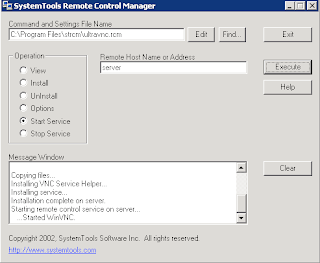
The other indispensable tool is the frighteningly effective Ultra VNC Pusher which can push VNC into a remote Windows computer to which you have SMB access. Not for the faint of heart!
My favorites?
Well, I like NTBackup Print Log because it does that: watches for NTBackup to finish, then finds the last log file and sends it to a printer. This helps supply some of NTBackup's missing functionality (however, I need a utility that helps make scheduling simpler and one that adds support for pre/post-backup commands).

The other indispensable tool is the frighteningly effective Ultra VNC Pusher which can push VNC into a remote Windows computer to which you have SMB access. Not for the faint of heart!
Wednesday, September 05, 2007
New MDS/OASIS VPN Connection Available
Thank goodness, we can finally begin ditching those obnoxious dial-up modems and use the broadband that we all know and love by downloading the client from https://www.qtso.com/mdcn.html. CMS has given nursing homes the ability to submit MDS's via the Internet using a virtual private network provided by AT&T Global Networking. The client is easy to set up, and seems to work well in Windows 2000 and XP. But my joy ended here.
Apparently our friends as CMS forgot that we are all highly dependent on our computer networks and that we occasionally keep important stuff like MDS files on a network drive. So when we connect to MDS/OASIS using the VPN and try to upload our MDS's from a network drive thenetwork drive is unreachable and we cannot select and submit our files.
I did what any good tech does before pulling his hair out - I called tech support. The guy at CMS tech support was friendly and knowledgeable, and acknowledged that this is a problem. Furthermore, the tech assured me that this is by design. Apparently the rest of our network presents a threat to CMS's computers (I'm paraphrasing here), so the machines that connect to CMS are quarantined from their network.
The tech went on to explain that CMS expects users with networked computers to copy MDS's from the network to their computer prior to connecting to the MDS/OASIS site.
Instead of manually copying these files, I created a batch file to copy them automatically and then launch the AT&T Global Network Client once the copy has completed. Here's how you can make your own:
Apparently our friends as CMS forgot that we are all highly dependent on our computer networks and that we occasionally keep important stuff like MDS files on a network drive. So when we connect to MDS/OASIS using the VPN and try to upload our MDS's from a network drive thenetwork drive is unreachable and we cannot select and submit our files.
I did what any good tech does before pulling his hair out - I called tech support. The guy at CMS tech support was friendly and knowledgeable, and acknowledged that this is a problem. Furthermore, the tech assured me that this is by design. Apparently the rest of our network presents a threat to CMS's computers (I'm paraphrasing here), so the machines that connect to CMS are quarantined from their network.
The tech went on to explain that CMS expects users with networked computers to copy MDS's from the network to their computer prior to connecting to the MDS/OASIS site.
Instead of manually copying these files, I created a batch file to copy them automatically and then launch the AT&T Global Network Client once the copy has completed. Here's how you can make your own:
- Create a text file on your desktop and rename it to a batch file by changing its filename extension to .bat - I named mine MDS-OASIS.bat
xcopy m:\marktech\XFEROUT\*.mds c:\XFEROUT /d /v /y /i
"C:\Program Files\AT&T Global Network Client\netclient.exe"
exit
- There a LINE BREAK (in other words, press Return) at then end of each line if you're typing this.
- Save this file as a .txt file and rename it as a .bat file. If you don't know how to do this, consult a computing professional.
- When you run it, a DOS window will open, it will copy all .MDS files that you don't already have to the folder c:\XFEROUT, then invoke the AT&T Global Dialer.
- When you finish your transfer and close the dialer, the DOS window will disappear.
/d only replaces files that are newer than ones on the target drive
/v verifies that each file is copied correctly
/y suppresses prompting to overwrite files on the destination computer
/i causes xcopy to assume that c:\XFEROUT is a directory, not a file.
Subscribe to:
Posts (Atom)